Add Background Music to Your Video
Published June 10, 2026
Drop a music track under your video — or several, each playing over its own stretch of the timeline — with automatic ducking so the music quiets down whenever someone is talking. All set up in the Director Workbench and previewed live before you render.
Music Under Your Video, Without a Video Editor
The Background Music effect in the Director Workbench mixes an audio track in underneath your existing video and its original sound. Point it at an MP3, WAV, M4A, or other audio file, set the volume, and FFmpeg Commander layers it in and re-encodes the final clip in one pass — no separate audio editor, no timeline-juggling between apps.
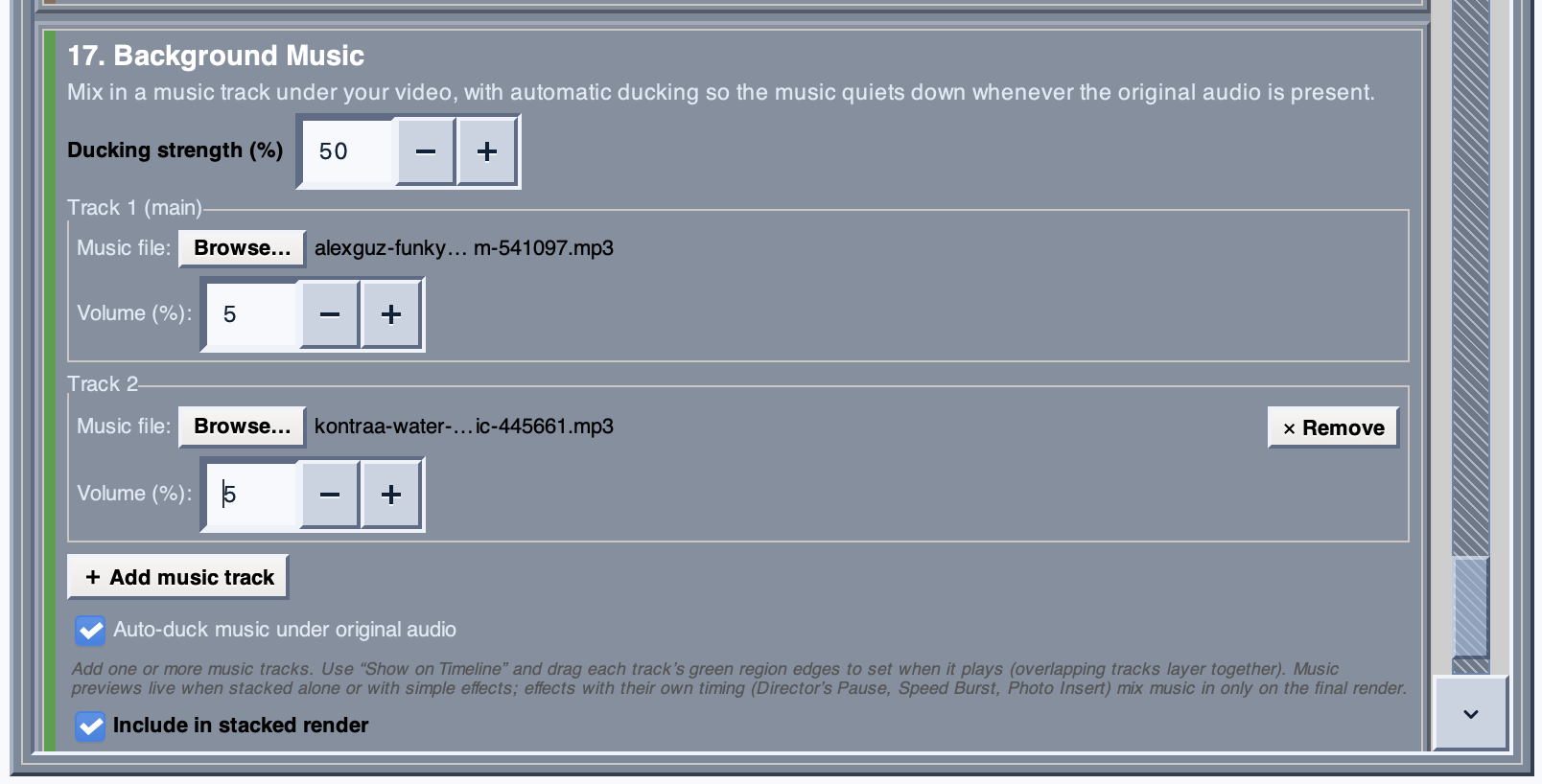
The Background Music panel — two tracks loaded, each with its own file and volume, plus a global ducking strength and auto-duck toggle.
Auto-Ducking — Music That Gets Out of the Way
Leave Auto-duck on and the music automatically drops in volume whenever there's original audio — dialogue, narration, a sound effect — then rises back up in the quiet gaps. It's the same effect you hear under podcasts and trailers, and it happens on its own. The Ducking strength control sets how aggressively the music pulls back when someone is talking.
More Than One Track — Music That Changes With the Scene
You're not limited to a single song for the whole video. Click Add music track and you can layer in a second, third, or fourth track — each with its own audio file and its own volume. New tracks line up one after another on the timeline, so an intro theme can hand off to a different cue under the next scene, then to something else over the closing shots.
To set when each track plays, hit Show on Timeline and drag the edges of its green region in the Director's Chair Player. Each track is its own block you can slide and resize to fit the moment. Tracks whose ranges overlap simply play together and layer, and a final limiter keeps the mix from clipping.
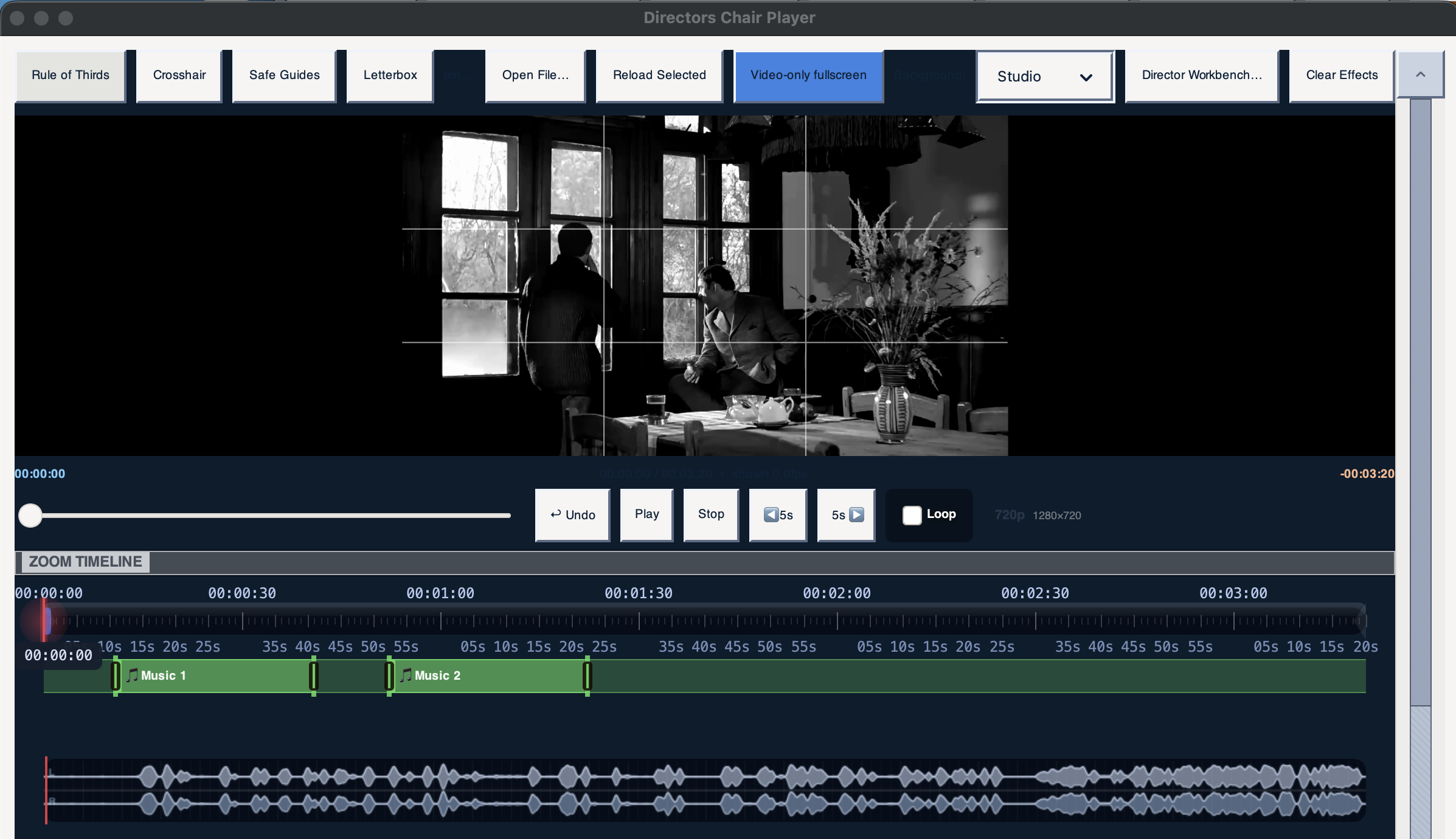
Two music tracks on the Player timeline — "Music 1" and "Music 2" each occupy their own draggable region, playing over different parts of the clip.
Tip: A single track defaults to covering the whole clip — perfect for plain background music. The moment you add a second track, the tracks become timed cues you can drag side by side, so each piece of music plays exactly where you want it.
Preview Before You Commit
Background Music plays right in the live preview when it's on its own or stacked with simple look effects, so you can scrub the timeline and hear the mix before rendering anything. Stacked with timed effects that have their own pacing — Director's Pause, Speed Burst, or Photo Insert — the music is mixed in on the final render. Either way, what you render is what you heard.
Background Music is one of the effects in the Director Workbench's suggestion engine, all stackable in FFmpeg Commander:
- Punch-in + Gentle Sharpen
- Warm Contrast Bump
- Letterbox Matte
- Rule-of-Thirds Reframe
- Auto-Highlight Reel
- Montage Reveal (2×2 Grid)
- Film Grain
- Tilt-Shift Miniature
- Chromatic Aberration
- Monochrome Mood Pass
- Color Grade (LUT)
- Speed Burst
- Director's Pause
- Color Drain
- Photo Insert
- Background Music
Ready to score your own video? FFmpeg Commander includes Background Music and much more — one-time purchase, no subscription.
Get FFmpeg Commander — $45 →New to FFmpeg? See how to use FFmpeg without the command line.
FFmpeg Commander Video Toolbox — 2026