Published May 30, 2026
Whether you're adding captions to an English interview, translating a Japanese documentary, or subtitling a lecture for accessibility — FFmpeg Commander transcribes, translates, and burns the subtitles permanently into your video, right on your own machine. No cloud uploads, no per-minute fees, no data leaving your computer.
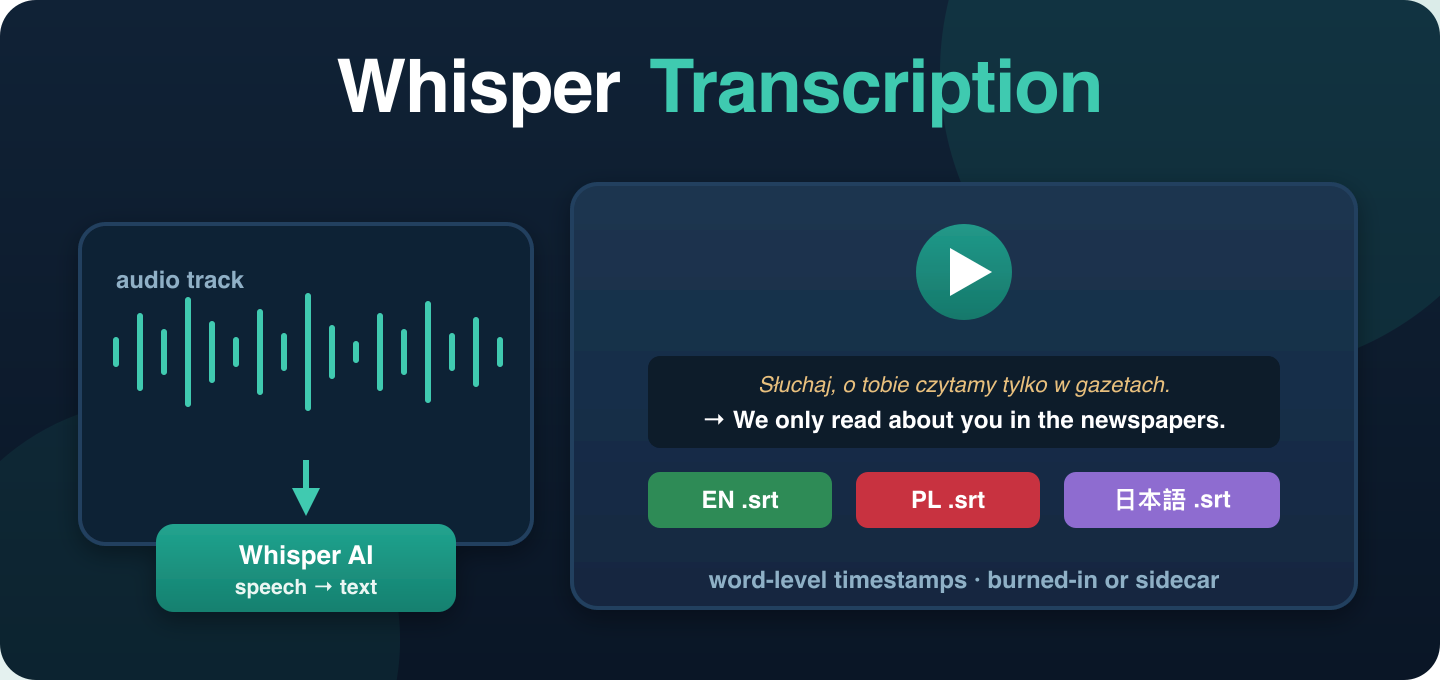
Foreign-language video in → subtitles burned in your language out. Great for interviews, documentaries, foreign films, family archives.
Same language in and out — auto-caption any video for accessibility, social media, or just to have subtitles burned into the file permanently.
The AI gives you a first pass — you make it perfect. Export the .srt, hand-edit it (fix wording, remove the odd hallucinated line, polish the translation), then re-import your edited file and burn it back into the video, fully time-aligned. Real control for anyone who knows the language.
Built for human translators, not just AI. The model's auto-translation is a strong starting point — but it can't catch every idiom, name, or cultural nuance the way a native speaker can. So FFmpeg Commander doesn't lock you into the AI's output: edit the exported .srt with your own expertise, then re-import and burn your corrected version straight into the video. If you know the language, you get the final say.
A few things that make it actually usable on the machine sitting on your desk:
FFmpeg Commander hardcodes subtitles directly into the video file — no separate subtitle file needed at playback, no extra software, no extra steps. The text is part of the video forever. A standard .srt file is also saved alongside it if you need it for archiving or editing.
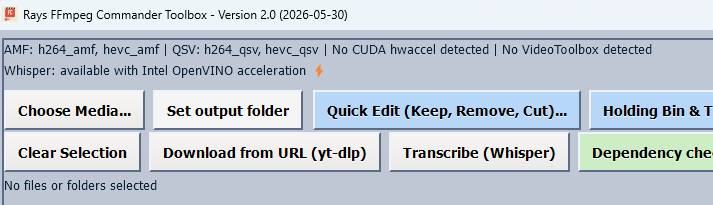
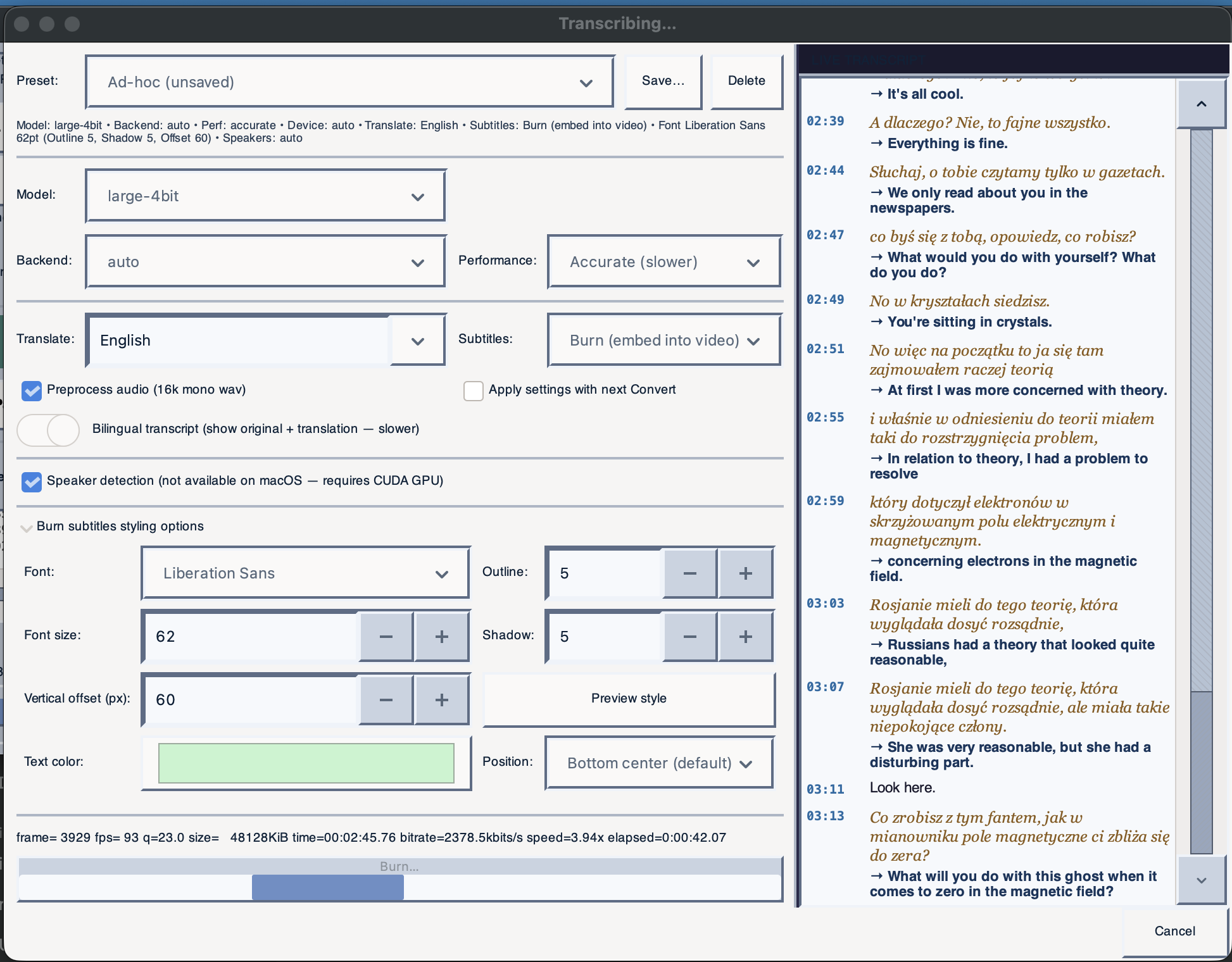
NVIDIA CUDA acceleration if you have a green card (aka an NVIDIA graphics card — they call them that because NVIDIA's brand color is green). Intel OpenVINO for Intel Arc, Iris Xe, and the new NPUs (Meteor Lake / Lunar Lake). One-click toggle between CPU and GPU right in the transcribe dialog.
Click "⚡ Bench" and it runs your model on both CPU and GPU using a 30-second sample of your actual file, then auto-selects whichever is faster on your machine. No more guessing.
Color-codes who's saying what so multi-person interviews don't turn into a wall of unattributed text.
Pick Japanese — the translation pack and AI model download in the background and are ready before transcription finishes. 20+ languages supported, downloaded once and cached locally forever. Keeps the install size as small as possible.
Reach audiences in other languages without paying per-minute cloud rates every time you publish.
Transcribe foreign-language interviews locally — no footage leaving your machine, no NDA worries.
Subtitle lectures, course material, and conference recordings for multilingual students.
Finally understand what grandma was saying in those old tapes from the old country.
Don't settle for the AI's first draft. Export the .srt, refine the wording with your own expertise — idiom, tone, cultural nuance the model misses — then re-import your edited file and burn it straight into the video. You stay in control of the final translation.
Subtitling foreign films, anime, or YouTube channels just because you want to.
Running a Plex, Jellyfin, or Emby server off a Synology, QNAP, or home NAS? Add permanent subtitles to foreign films in your personal movie library — no scraping sketchy subtitle sites, no cloud uploads, nothing leaves your network.
Add burned-in captions to any video for deaf or hard-of-hearing viewers — no special player required, subtitles are part of the video file.
Burn captions into reels, shorts, and clips so they play with text on by default — no platform subtitle support needed.
While you're there, the toolbox also handles:
One install, one window, no subscriptions, runs on your own machine.
Yes — FFmpeg Commander runs entirely on your machine. Whisper AI transcribes locally, subtitles are generated locally, and the final video never leaves your computer.
FFmpeg Commander hardcodes (burns) subtitles directly into the video file using FFmpeg. The subtitles become a permanent part of the video — no separate .srt file needed at playback time, works in any player on any device.
Yes. Just set the source and target language to the same thing (English → English, for example) and it auto-captions without translating. Works for any of the 20+ supported languages.
A .srt file is a separate subtitle file that needs a media player that supports it — if you send the video without the .srt, there are no subtitles. Burned-in subtitles (also called hardcoded subtitles) are drawn directly into the video frames, so they show up everywhere, in every player, on every device, no extra file needed. FFmpeg Commander does both — burns them in and saves the .srt.
Yes. NVIDIA CUDA and Intel OpenVINO (Intel Arc, Iris Xe, Core Ultra NPU) are both supported. The built-in benchmark scan auto-selects the fastest device on your specific machine.
Yes — and this is a big one for anyone who actually knows the language. FFmpeg Commander saves a plain .srt subtitle file you can open in any text editor. Fix the wording, correct an idiom the model got literal, remove a hallucinated line, polish the tone — then use the Burn Edited .SRT option to re-import your corrected file and burn it permanently into the video, fully time-aligned. You're not stuck with the AI's first draft; the final translation is yours.
Yes — this is one of the most common uses. Run a foreign film through FFmpeg Commander on your computer, burn the subtitles in (or save the .srt alongside it), then drop the file back into your media library on your Plex, Jellyfin, or Emby server. Because the subtitles are part of the video file, they play on every client — TV, phone, browser — with no separate subtitle download and no dependence on a scraper plugin pulling from subtitle sites.
It fits perfectly. FFmpeg Commander runs on your Windows or Mac machine, processes the file locally, and you copy the finished video back to your NAS. Nothing is uploaded to the cloud and nothing leaves your home network — which is exactly why self-hosters who already run their own media servers like it. Subtitle a film once, store it on the NAS, and it's done for good.
No. Burned-in (hardcoded) subtitles are drawn into the video frames themselves, so they appear in any player on any device — smart TV, phone, tablet, browser — with zero configuration and no subtitle plugin required.
FFmpeg Commander — one-time purchase, runs locally on Windows and Mac, no cloud required.
Get FFmpeg Commander — $45 →New to FFmpeg? See how to use FFmpeg without the command line.
FFmpeg Commander Video Toolbox — 2026