Published June 8, 2026
You've got a Plex or Jellyfin library with foreign films, anime, or Korean dramas. The subtitles show up fine on your laptop. On the TV app, Roku, or Fire Stick — nothing. Here's why that happens, and how to fix it permanently in one step.
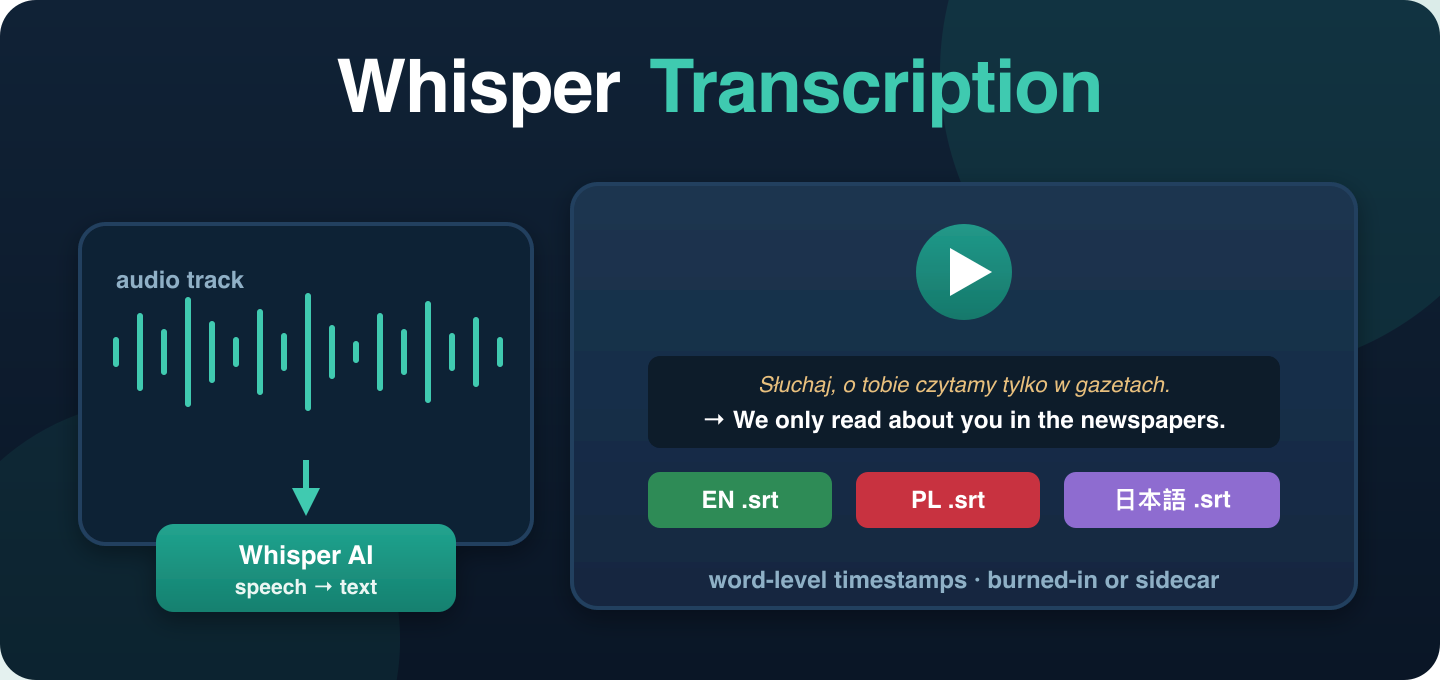
Plex failed to find subtitles for that film?
Plex's built-in subtitle downloader pulls from community databases like OpenSubtitles. When it comes up empty — obscure release, wrong filename match, no one ever uploaded subs for that version — you're stuck. Generate your own with Whisper AI and burn them in permanently. No database. No waiting. No community that may or may not have gotten there first.
The .srt file works on your desktop Plex client because the desktop app is good at loading separate subtitle files. TV apps, streaming sticks, and smart TVs are not. They either ignore the .srt entirely, load the wrong one when you have multiple, fail to display certain encodings, or require a codec that isn't installed. The subtitle file and the video file are two separate things — and anything that requires two things to work together in exactly the right way will eventually fail on one of your devices.
The fix is simple: make the subtitles part of the video file. Burned-in (hardcoded) subtitles are drawn directly into the video frames. There's no separate file to load, no codec to install, no Plex subtitle settings to configure. The text is in the video. It plays on your TV, your Roku, your Fire Stick, your Apple TV, your phone — everywhere, automatically, forever.
| Subtitle Method | Works on Desktop | Works on TV App / Roku / Fire Stick | Requires Extra Files |
|---|---|---|---|
| .srt sidecar file | Usually yes | Often no | Yes — .srt must stay with the video |
| Burned-in subtitles | Always | Always | No — it's part of the video |
French cinema, Italian classics, Korean arthouse, Spanish thrillers — add English subtitles burned in so they play correctly on your TV without touching a subtitle site.
Japanese audio, English subs hardcoded permanently. No more subtitle stream switching in Plex, no more subs disappearing on certain clients.
K-dramas, C-dramas, J-dramas with burned-in English subtitles that work on every device your household uses.
Foreign-language documentaries from YouTube downloads or personal archives — translated and captioned for the whole household.
Old home footage or recordings in another language — translated once and stored permanently with the video file.
Burn captions into any video for household members who are deaf or hard of hearing — no special player or setting required.
A lot of people running Plex or Jellyfin are also running a NAS — a Synology, QNAP, or a self-built box in the closet. FFmpeg Commander doesn't run on the NAS directly, but the workflow is simple:
Nothing is uploaded to the cloud. Nothing leaves your home network at any step. The finished file lives on your NAS forever with subtitles already baked in.
If you already have a subtitle file you trust — downloaded, fan-translated, or generated previously — you don't need to run the AI at all. FFmpeg Commander's Burn Edited .SRT option lets you import any existing .srt file and burn it permanently into the video, fully time-aligned. Same result, skipping the transcription step.
This also means you can review and edit the AI's output before committing it. FFmpeg Commander saves a .srt after transcription — open it in any text editor, fix a mistranslated name or awkward line, then re-import your corrected version and burn that into the video instead of the raw AI draft.
FFmpeg Commander currently processes one video at a time for subtitle generation. Whisper AI transcription takes real compute — a 2-hour film typically takes a few minutes depending on your hardware — and proper unattended batch processing of a whole library would need queue management we haven't built yet.
For most people this works fine. Pick the films you actually want subtitles on, process them over an evening, and they're done permanently. You're not running a subtitle farm — you're fixing the five foreign films in your library that keep failing on the TV.
While you have it open, FFmpeg Commander also handles:
One install, one window, no subscription, runs on your own machine.
Whisper AI can transcribe and translate from any of these languages — pick the one your film is in and choose English (or any other target) as the output:
Separate subtitle files (.srt, .ass) need the player to load and render them correctly. Desktop Plex clients are good at this. TV apps, Roku, Fire Stick, and smart TVs frequently aren't — they skip sidecar files, load the wrong stream, or lack the right subtitle renderer. Burning subtitles into the video file removes the dependency entirely: the text is drawn into the video frames, so any player on any device shows it.
Drop the film into FFmpeg Commander, select English as the target language, and let it run. Whisper AI listens to the audio, translates it, and burns English subtitles permanently into the video file. Copy the finished file back to your Plex library. Done — no subtitle site, no plugin, no scraper.
Not yet — one video at a time currently. For most home users, processing a handful of films over an evening is straightforward. Batch subtitle queuing is something we'd like to add in a future version.
Yes. Use the Burn Edited .SRT option to import any existing .srt file and burn it permanently into the video. You don't need to run the AI step if you already have subtitles you're happy with.
The video is re-encoded with the subtitle text drawn in, so technically yes — it goes through another encode pass. In practice, at normal quality settings, the difference is not visible to a human eye. You're watching a 1080p film at normal size, not examining individual pixels.
Yes — FFmpeg Commander runs on both. On Mac it uses Apple's VideoToolbox for hardware acceleration. On Windows it supports NVIDIA CUDA and Intel OpenVINO.
FFmpeg Commander — burn subtitles into any video, locally, one-time purchase.
Get FFmpeg Commander — $45 →New to FFmpeg? See how to use FFmpeg without the command line.
FFmpeg Commander Video Toolbox — 2026