What's New
Every feature, improvement, and release note — straight from development. (The old News page now lives here.)
Synthetic Voice Dubbing: Make Your Video Speak Another Language
The app has been able to transcribe and translate speech for a while now — Whisper listens to your video, writes out subtitles, and can translate those subtitles into another language. But that's where it stopped. You got text. If you wanted the video to actually speak that language, you were on your own.
That's what this adds. Synthetic Voice Dubbing mutes the original speech and replaces it with a synthetic voice reading your translated subtitles — timed so each line lands where the original speaker said it.
This is not the same thing as Voice-Over. Voice-Over records your voice through a microphone while you watch. This needs no microphone at all — the voice is generated, and what it reads is a subtitle file. Different jobs entirely; they just both end up as audio on your video.
How you actually use it. Three steps, in this order. Pick the video. Pick the .SRT you want spoken — if you've already run Transcribe and Translate on that video, the app offers that file automatically. Then choose the language and the voice, and press Dub. That's the whole flow.
All of it runs on your own machine. No API key, no account, no subscription, and no per-minute cloud charges — which is how nearly every other dubbing tool bills for this. Your video is never uploaded anywhere, because there's nowhere for it to go: the synthesis happens locally, in the same bundled runtime the transcription already uses. The only thing that ever touches the network is a one-time download of the voice you picked (most are around 63 MB, the largest 79 MB), and once it's on disk it stays there. Dub the same language a hundred more times and nothing is downloaded again.
60 voices across 19 languages — English, Spanish, French, German, Italian, Portuguese, Dutch, Swedish, Polish, Czech, Slovak, Russian, Ukrainian, Turkish, Arabic, Hindi, Chinese, Japanese, and Korean. English alone has 20 to choose from, male and female, in a range of accents.
You can hear a voice before you commit to it. Picking blind from a list of names like alan, alba, or northern_english_male is a guessing game, so there's a Preview button that plays about five seconds of the actual voice. It streams a small sample clip rather than pulling down the whole model — auditioning six voices costs you a few hundred kilobytes, not half a gigabyte. Only the one you actually dub with gets downloaded in full.
The timing problem, and what the app does about it. A translated line is almost never the same length as the original. German and French in particular tend to run longer than the English they came from, so a sentence that fit comfortably in two seconds now needs three. The app fits each line to its subtitle slot by speeding it up — but only up to a point. Past about 1.6× speed, sped-up speech stops being intelligible, so rather than compress a line into gibberish just to hit a timestamp, the app lets it run slightly long instead. A dub that drifts a little is far easier to watch than one that's technically in sync and impossible to understand.
You can also choose to keep the original audio underneath at a low level instead of replacing it outright — useful when there's music or background you don't want to lose along with the dialogue.
One thing the app now protects you from, because nothing used to stop it. Dubbing reads your subtitles aloud. It does not translate them. Point it at an English subtitle file, pick a French voice, and the app will do exactly that — a French voice pronouncing English spelling with French pronunciation rules, which comes out as confident, fluent-sounding gibberish. It doesn't sound like a wrong setting. It sounds like the feature is broken. That combination turned up in testing, and the conclusion was that the app had no business allowing it silently in the first place.
So the app now checks. When you pick a subtitle file, it works out what language the file is actually written in and preselects that for you. If you then choose a voice in a different language, it says so plainly before you start, rather than letting you find out several minutes later. It stays quiet when it isn't confident — a wrong warning on a correct file would be worse than none — but on a clear mismatch you get told. The fix is simply to translate the subtitles first, then dub.
Available on all three platforms. This shipped for Apple Silicon Macs first, then Windows 11 and Linux. Windows needed its own handling for one thing in particular: the speech engine stores its data path in a small fixed-size buffer, and the workaround for that uses a symlink on Mac and Linux — which on Windows would need Developer Mode or administrator rights, so it uses a directory junction there instead. Same feature, same voices, same offline behaviour on each.
- Mutes the original speech and replaces it with a synthetic voice reading your translated subtitles
- 60 voices across 19 languages, with 20 English voices in a range of accents
- Preview plays about 5 seconds of any voice before you download it
- Runs entirely on your own machine — no API key, no account, no subscription, nothing uploaded
- Voice models download once (63–79 MB) and are cached from then on
- Lines are fit to their subtitle timing, capped at 1.6× speed so speech stays intelligible
- Option to keep the original audio quietly underneath instead of replacing it
- Warns you when the subtitle file's language doesn't match the voice you picked
- Play the result the moment it finishes, or jump straight to it in Finder
- Available on Mac (Apple Silicon), Windows 11 and Linux
As always, working on additional improvements all the time. Cheers!
Auto-Update: Now Available
Up until now, finding out about a new version meant checking this page yourself. Not anymore — the app checks quietly in the background (at most once a day) and, if a newer version is out, a bar slides down right at the top of the window letting you know, with buttons for What's New, Download, Remind me later, or Skip this version.
Clicking Download doesn't send you back to the Order page to dig around for a link. If you've got your license key handy, the download starts immediately, right there. If you've only got the email address you originally purchased with, the app says so up front — it'll email a fresh download link to that same address instead, which takes a minute or two rather than being instant. That's deliberate: a key alone proves you own a copy, but an email address alone doesn't, so it goes to the inbox on file rather than handing a file straight back.
Available now on Mac, Windows 11, and Linux — the exact same capability across all three: automatic update detection and the same one-click (or one-email) redownload, no digging through the site required.
- The app checks for updates on its own — no more manually checking this page
- A dismissible banner shows up top when a newer version is available, with What's New, Download, Remind me later, and Skip this version
- License key on hand? Download starts immediately, no email needed
- Only have your purchase email? A fresh download link gets emailed to that address instead
- Available now on Mac, Windows 11, and Linux
As always, working on additional improvements all the time. Cheers!
Tor Routing: A Second Try for Region-Locked Downloads
A recent update taught the app to recognize when a download fails specifically because of a location-based (not a DRM or payment) block, and explain that plainly instead of just failing. This update adds a real second option right there in that message: an optional retry through Tor.
How Tor actually works, briefly: instead of connecting straight to a site, Tor routes your connection through three relays run by volunteers around the world — an entry point, a middle relay, and an exit point — encrypting a layer at each hop along the way. No single relay in that chain ever knows both who you are and what you're requesting: the first relay knows your identity but not your destination, the last one knows the destination but not you. It's the same technology long relied on by journalists, researchers, and ordinary privacy-conscious people who'd rather their online activity not be tied directly back to their home IP address.
The app puts that to fairly specific use. When a download hits a location block, it first tries an unrestricted Tor connection, then automatically works out which region the content is actually meant for and — if needed — retries again through a relay physically in that country (or, for one-country attempts that come up empty, the wider surrounding region). It's a real routing change, not a claim: the exit relay genuinely sits in that country.
Real reasons this comes up: an expat or traveler trying to reach their own home country's public broadcast archive while abroad; a shared or dynamic IP address that gets flagged as the wrong country when it isn't; or just not wanting a download's origin tied to your home address, for the same ordinary privacy reasons people reach for a VPN generally. This uses Tor's volunteer relay network rather than a paid VPN service, mainly because it was already the right fit to build directly into the app — no separate download, nothing extra to install.
Also new: the app now catches a download that's gone silent and fixes it on its own. Any download — Tor-routed or not — can occasionally go quiet mid-transfer, usually one flaky hop somewhere along the network path rather than anything wrong on your end. Instead of assuming that's just a slow patch, the app watches for a real stretch of zero movement, and when it sees one, stops the frozen attempt and automatically restarts the exact same request — so it can pick back up close to where it left off instead of starting over from scratch. Paired with more detailed live progress (current speed, estimated time remaining, and how much of the file is done), it's a lot easier to tell "this is just slow" from "this is actually stuck" at a glance — and in the second case, the app now handles it without you needing to notice or step in.
Two things worth being upfront about, same as the popup itself already is: this only ever helps with a location check. It does nothing for DRM-protected content or a title that's simply behind a paywall — neither of those is a location problem, and the app tells you so directly rather than pretending a retry might work. And using a VPN or Tor to get around a site's regional licensing is usually against that site's own terms of service, even in places where it isn't illegal — worth knowing plainly, not glossing over.
- Optional Tor retry when a download fails specifically due to a location-based (geo) block
- Automatically targets the region the content actually needs — a real exit relay in that country, not a generic one
- Built directly into the app; nothing extra to download or install
- Detects a download that's gone silent mid-transfer and automatically restarts it — no lost progress, no manual intervention needed
- Live progress now shows real speed, ETA, and completion detail, not just a percentage, so "slow" and "stuck" no longer look the same
- Doesn't touch DRM or paywall blocks — those still get their own honest explanation instead of a false hope
- Same terms-of-service caveat as any VPN — stated plainly, not hidden
As always, working on additional improvements all the time. Cheers!
Downloads That Tell You What's Actually Wrong
Some videos simply can't be downloaded — not a bug, not a setting to fix, just the content itself. Either it's copy-protected (DRM), or the site is checking where your connection is coming from and blocking it by region. Before, the app didn't know the difference: it would quietly work through several login and format retries against the exact same wall before finally giving up, which could take a while and left you guessing why.
Now it checks up front, and if either case applies, it stops immediately and puts up a plain-language popup instead of grinding through retries that were never going to work. For DRM-protected content, it tells you straight — that's a hard stop, no download tool gets around real copy protection. For a region block, it explains that the site checked your connection's location, and that a VPN with a server in the right region may get around it, with a note that doing so is usually against that site's terms of service. Two different problems, two different honest answers, instead of one generic failure message.
The Download from URL button is also smarter while a download is running. It turns into a live status indicator — it blinks a warm orange and its label changes to "Downloading… (click to Cancel)". Click it mid-download and it actually cancels: it stops the running process directly, not just skips ahead to the next retry attempt, so if something looks stuck you have a real way out without force-quitting the app.
- DRM-protected videos are detected up front and explained clearly — no pointless retries
- Region/GEOIP blocks get their own explanation, including that a VPN may (with ToS caveats) get around them
- Both cases now fail fast instead of working through the full retry chain first
- The download button blinks while active and doubles as a real one-click Cancel
As always, working on additional improvements all the time. Cheers!
Voice-Over: Narrate Your Video While You Watch It
You can now record narration straight into your video from the Director's Chair Player. Press Record Voice-Over, the player opens, and you drop the effect on the timeline exactly where you want to start talking — the same way you place any other effect. Then you watch the video and narrate over it. Press stop when you're done, and you're asked whether to keep the take or bin it.
Every take you keep is saved next to your video in its own folder, numbered — take_01, take_02, and so on. First takes are rarely the keeper, so nothing overwrites anything. Record five passes and pick the one you like.
While your voice plays, the video's own audio drops underneath it so you can actually be heard, and there's a control for how far it drops. It fades down and back up rather than jumping, so it sounds deliberate instead of abrupt.
Two things worth calling out, because they're the parts that usually go wrong. First, the preview is live — nothing gets rendered and nothing reloads when your narration starts, so playback runs straight through the effect with no pause or gap at either edge. Second, quiet recordings are handled for you. A built-in laptop mic typically records far quieter than the film it has to sit over, which would leave your voice buried under the soundtrack. The app measures each take and brings it up to a usable level automatically. A take that captured nothing at all is left alone rather than amplified into hiss.
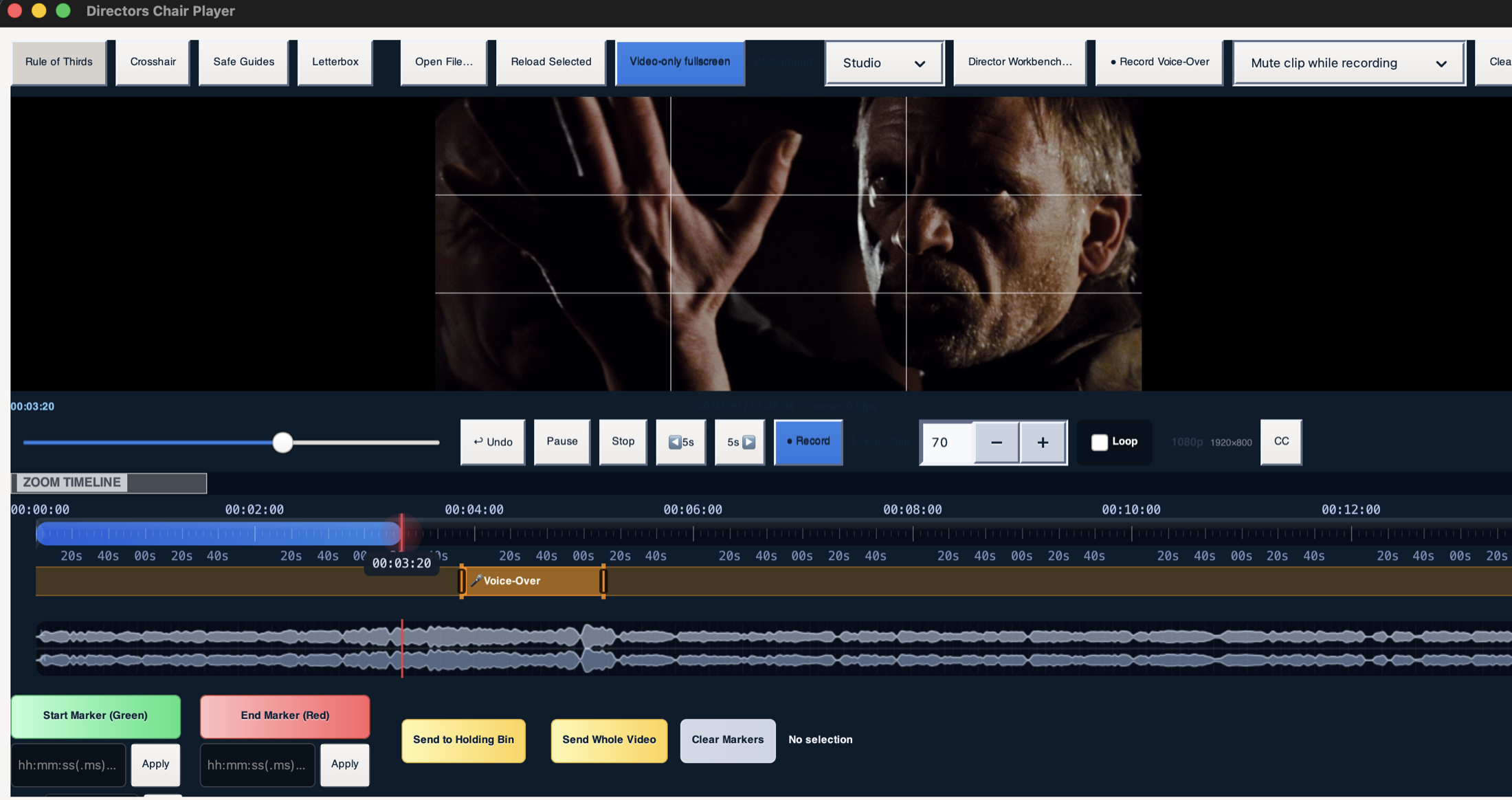
- Record while watching, positioned on the timeline like any other effect
- Keep-or-discard prompt after every take, with takes numbered and stored beside your video
- The video's audio ducks under your voice, with an adjustable amount and a smooth fade in and out
- Live preview — no render wait, and no gap in playback when the narration starts or ends
- Automatic level matching, so a quiet microphone doesn't leave your narration inaudible
- Microphone detection built in, and silent takes are flagged rather than quietly mixed in
As always, working on additional improvements all the time. Cheers!
B&W Auto-Recommend: Let the App Read Your Footage
The Black & White engine has eight real film stock emulations — Kodak Double-X, Tri-X, T-MAX, ORWO UN54, ORWO N74, Ilford HP5+, Pan F Plus 50, Delta 3200 — and until now, picking the right one meant knowing your film stocks or clicking through all eight and eyeballing it.
There's now an AUTO-RECOMMEND button in the B&W Preview Controls window. Click it and the app takes a stratified random sample across the entire length of your video — not just the first few seconds, which could easily be a title card or one unrepresentative scene — reads the actual brightness of each sample, and matches it against the real ISO speed each stock was built for. Darker footage gets pointed toward faster, grainier stocks like Delta 3200; well-lit footage gets pointed toward finer-grained, lower-ISO stocks like Pan F Plus 50. That's the same logic a photographer uses picking film stock for available light, just automated.
It shows you the top 3 matches, not just one, each with a one-sentence reason grounded in what it actually measured — and an Apply button that drops you straight into that preset, sliders and all.
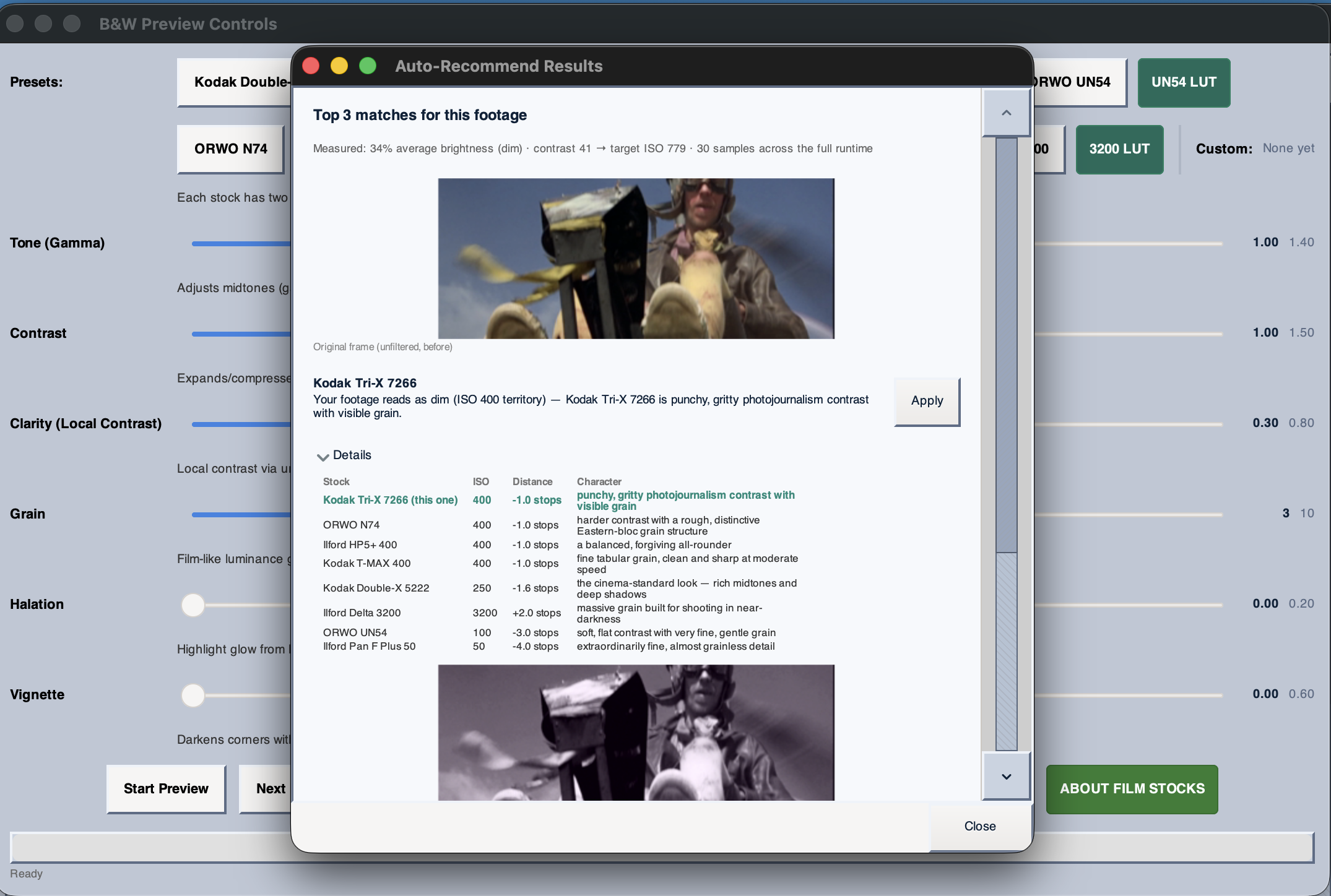
- Stratified random sampling across the full video, not just the opening seconds
- Brightness read directly from the footage and matched to each stock's real-world ISO speed
- Top 3 recommendations, each with a plain-language reason — not a black box
- One click to Apply — routes through the same preset system as the regular buttons, so every slider updates and the live preview restarts automatically
As always, working on additional improvements all the time. Cheers!
 Screen Capture Is Now Available on Linux (Beta)
The free screen recorder — until now Mac-only — has a Linux build: a GTK4 interface driving FFmpeg 9 for capture, with your voice and the computer's sound recorded together in one file, same as the Mac version.
One real system difference worth knowing before you download: capture goes through FFmpeg's x11grab, which needs a genuine X11/Xorg session — and most Linux desktops default to Wayland now, this one included. Having XWayland installed doesn't fix it: XWayland runs old X11 apps as windows, it doesn't hand your whole desktop over to x11grab to capture. On a real Ubuntu 26.04 Wayland test machine, the fix that actually worked was installing Xfce (sudo apt install xubuntu-desktop, keep gdm3 as the display manager when asked, reboot), then choosing “Xfce” from the gear icon at login. Full steps on the download page. It's marked Beta for a reason — it's newer and less tested than the Mac app, and I'd rather say that upfront than have you find out the hard way.
iPhone Import: Steadier on Older Phones
A customer running an iPhone 8 hit a problem importing his library — the app would close on him during the preview-thumbnail stage. His crash reports are what made this findable, so thank you.
Two things came out of it. First, a real bug: on some phones the app misread one of Apple's internal folders while working out where previews are kept. That's fixed.
Second, and more useful long term — the step that talks to the phone now runs in a separate helper process. If it ever fails on a phone or iOS version I haven't seen, the helper stops and the app keeps running instead of closing. Your videos still import in full quality; at worst the preview pictures are missing.
- Fixed a folder-detection bug that could stop the app during iPhone import
- Preview lookup now runs isolated, so a failure there can't take the app down
- If previews can't be read, the app remembers and quietly skips that step next time
- Sideways iPhone clips now play the right way up in the Director's Chair Player
Worth knowing: on some older iPhone and iOS combinations the preview thumbnails may not be available at all. Videos still transfer at full original quality either way — and once they are on your Mac, Finder's Gallery view (Cmd+4) shows previews regardless.
As always, working on additional improvements all the time. Cheers!
Crash Reporting & Crash History
Software crashes sometimes — it happens. What used to happen next was a confused back-and-forth trying to figure out what went wrong on your machine. Not anymore.
There's now a Crash History button right next to Exit. It sits quietly out of the way in gray until something actually goes wrong — if the app didn't close cleanly last time, it turns red and flashes so it's impossible to miss.
Click it and you get a real diagnostic report: what the app was doing, your system info, and the actual error — plus a running history of your last 20 crashes, so nothing gets lost if you're not around when it happens. Select any entry, hit Copy to Clipboard, and paste it straight into a support email. That one paste tells me exactly what broke, which means an actual fix instead of guesswork.
- Only tracks issues inside FFmpeg Commander itself — nothing about your system or other apps
- Keeps your last 20 crashes, so a history survives even if you update to a newer version
- A Clear History button if you'd rather not keep it around
Rolling out on Mac first, with Windows and Linux right behind it.
As always, working on additional improvements all the time. Cheers!
Director Workbench: Text Overlay Timeline
Text Overlay in the Director Workbench now has its own dedicated, color-coded swim lane right in the Player's timeline. Drop as many text overlays as you want directly onto the timeline visually, exactly where you want each one to start and end.
Each overlay is fully customizable:
- Custom colors and fonts, including your own system fonts
- Pick a Frame — click exactly where in the frame you want the text to appear, instead of guessing at coordinates
As always, working on additional improvements all the time. Cheers!
GoPro Import Now Detects and Merges Split Chapters Automatically
If you've ever pulled footage off a GoPro and found one continuous recording split into two or three separate files (GH010254.MP4, GH020254.MP4, and so on) that's the camera's own recording limit kicking in mid-take, not you doing anything wrong. Figuring out which clips actually belonged together and stitching them back into one file used to be manual work.
The GoPro Import picker now has a Chapter Detection toggle. Turn it on and it groups clips from the same recording with matching colored borders, so you can see at a glance which files split from the same take. Check one clip in a group and its chapters get selected automatically. On import, FFmpeg Commander merges each group back into a single continuous file — no re-encoding, so it's fast — with a live progress bar, a time estimate, and a Cancel button if you change your mind partway through.

VHS Fix — Restore Old VHS Tapes and Home Video
I added a new tool to FFmpeg Commander called VHS Fix, and it does exactly what the name says. If you've ever captured a shoebox of old VHS tapes or camcorder footage and been let down by how fuzzy, jittery, and washed-out it looks, this is for you. That's not you doing anything wrong. It's just what tape looks like once you see it on a modern screen. VHS Fix cleans it up.

From one dialog it deinterlaces the jittery motion, scrubs away the grainy analog noise, settles the rainbow shimmer along edges, and revives faded colour. It can even use AI to upscale a soft standard-def tape close to HD. You don't have to understand any of that to use it: a Recommendation Scan looks at your footage and picks sensible settings for you, and an A/B before-and-after preview lets you check a short sample before you commit to restoring a whole tape. Like everything else in the toolbox, it runs entirely on your own computer.
Full walkthrough, with a video: Restore old VHS tapes and home video →
Both Mac Apps Are Now Notarized by Apple
FFmpeg Commander and the free Screen Capture app are now signed with an official Apple Developer ID and notarized by Apple. Apple has verified who I am as the developer, scanned the apps, and issued a notarization ticket that confirms there's nothing malicious inside.
That gets rid of the "unidentified developer" warning, and the right-click-to-open trick people used to get past it. You download either app and it opens the normal way the first time, on any Mac.
Nothing else changed. Both are still local-first, with no cloud, no telemetry, and no account. This is just Apple putting its stamp on that. Download the free screen recorder → or get FFmpeg Commander →
Screen Recording Has Been Removed from FFmpeg Commander
I pulled the Screen Recording feature from FFmpeg Commander. It was macOS-only, and keeping a macOS-exclusive feature in a tool that now runs on Windows and Linux never quite made sense. It also didn't really fit what the toolbox is for. FFmpeg Commander is about converting, editing, and processing video files you already have. Capturing your screen is a different job.
The good news is that the screen recorder isn't going away entirely. It's now a standalone free Mac app, and it grew some features the built-in version never had: record your voice and the computer's sound mixed together in one file, hear the audio live while you record, and a one-click installer for the BlackHole audio driver. Download it free here →
Free User Manual, Now Available as a PDF
There is now a complete User Manual for FFmpeg Commander, and it is free to download whether you have already bought the software or you are still deciding. I wrote it to cover the whole toolbox in plain language, from choosing your media and editing clips to downloading video, Whisper transcription, the black-and-white filmic look, and every one of the encoding settings.
It also covers the parts people tend to miss, like the per-clip effects and frei0r plugins in the Holding Bin, the full set of Director Workbench looks, and how the player quietly changes what it offers depending on whether you are watching a plain video or working on a clip. If you have ever wondered what a button actually does before you click it, this is the place to look.
FFmpeg Commander Is Now Available on Linux
FFmpeg Commander is officially out for Linux — same GUI, same toolbox, no command line needed to install or run it. Extract the download, right-click install.sh, choose "Run as a Program," and you're done. The installer handles desktop integration and any missing system packages automatically.
Certified on Ubuntu 26.04 LTS (x86_64) — that's the version this has actually been tested on. It should also work on other recent Ubuntu LTS releases and close derivatives (Linux Mint, Pop!_OS, Elementary OS), since they share the same underlying libraries, but I haven't independently verified those yet, so no guarantee there.
Full step-by-step instructions plus a video walkthrough of the install: Install FFmpeg Commander on Linux →
Network Codec Convert & Replace — Fix HEVC Files on Your NAS Without Downloading Anything Manually
Got an HEVC (H.265) file on a NAS that an older TV or low-power media server can't play? FFmpeg Commander could already convert codecs on files on your computer — now it can do the same thing for a file sitting on any SMB or NFS share.
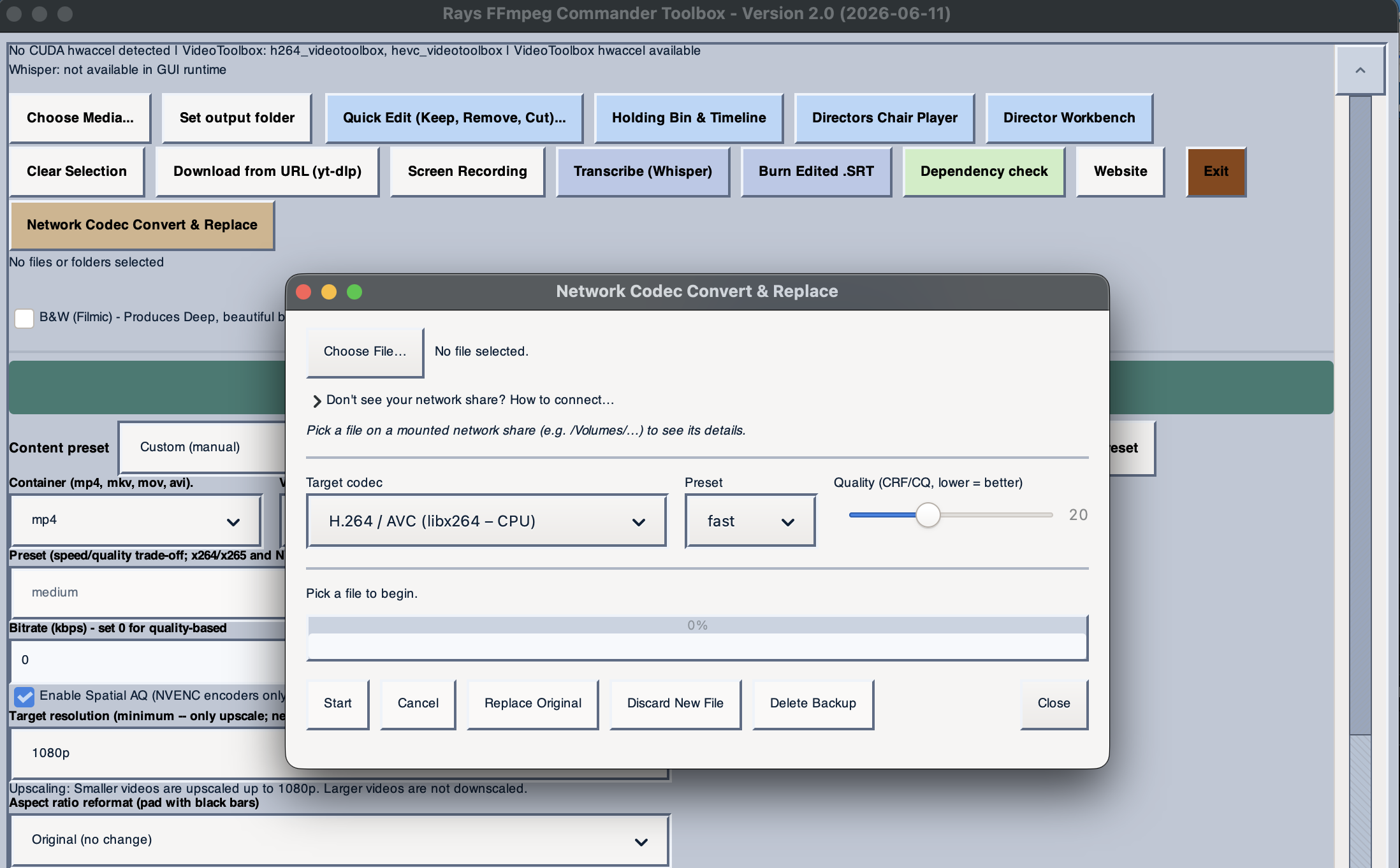
Pick a file from anything mounted under /Volumes — a QNAP, Synology, TrueNAS, or any other SMB/NFS share — and FFmpeg Commander copies it down, converts the codec with full hardware acceleration, and copies the result back next to the original as a new file. Nothing is overwritten until you review it and click Replace Original, which keeps a .bak backup until you're ready to delete it.
This isn't tied to Plex specifically — it works with any server where file sharing is turned on, whether that's Plex, Jellyfin, Emby, or just a folder of videos on a share. Read the full guide →
Two New Director Workbench Effects — Photo Insert & Background Music
Two new creative effects just landed in the Director Workbench, both stackable with everything else and rendered in a single pass.
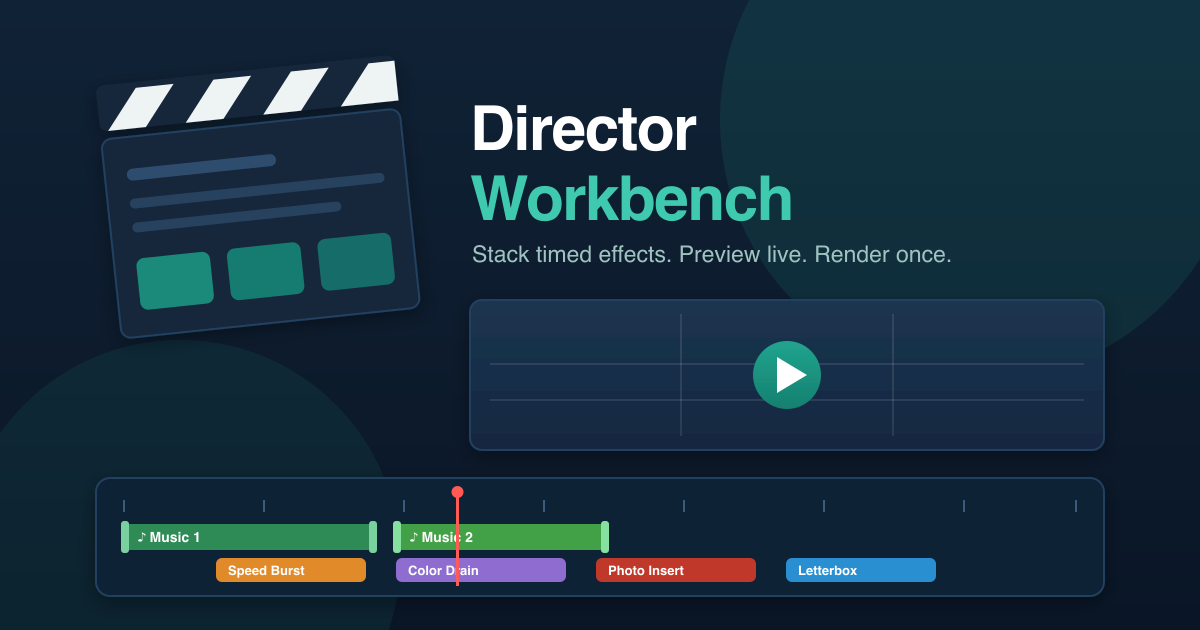
Photo Insert drops 1–4 still images straight into your video at any timestamp. Each photo gets its own animation (Static, Ken Burns in/out, fades, or slide-ins), its own color style (Normal, B&W, Sepia, Warm, or Cool), and an optional caption burned in as a clean lower-third title — then the video picks right back up. Read the Photo Insert guide →
Background Music mixes a music track under your video with automatic ducking, so the music quiets down whenever someone is talking and rises back up in the gaps. And it's not limited to one song: add multiple tracks, each with its own audio file, volume, and draggable timeline range, so an intro theme can hand off to a different cue under the next scene. Overlapping tracks layer together, and the whole mix previews live before you render. Read the Background Music guide →
Both join the Director Workbench's growing set of stackable effects — position each one on the timeline by dragging its region in the preview player, and see exactly what you'll get before you export.
Intel OpenVINO Support — Whisper Transcription Now GPU & NPU Accelerated on Intel
FFmpeg Commander now supports Intel OpenVINO for Whisper AI transcription on Windows. This brings hardware-accelerated transcription to Intel Arc graphics and modern Intel Core Ultra processors — including onboard NPU acceleration where supported.
Until now, GPU-accelerated transcription required an NVIDIA card with CUDA. Intel and AMD users were limited to CPU-only transcription. With OpenVINO, Intel users can now run Whisper at significantly faster speeds using their GPU or NPU — no NVIDIA card needed.
One-click install from the app's Settings — no technical setup, no command line. FFmpeg Commander handles the OpenVINO backend installation automatically.
Compatible hardware: Intel Arc graphics (A-series and newer) and Intel Core Ultra processors with integrated GPU or NPU. Older Intel integrated graphics may fall back to CPU mode.
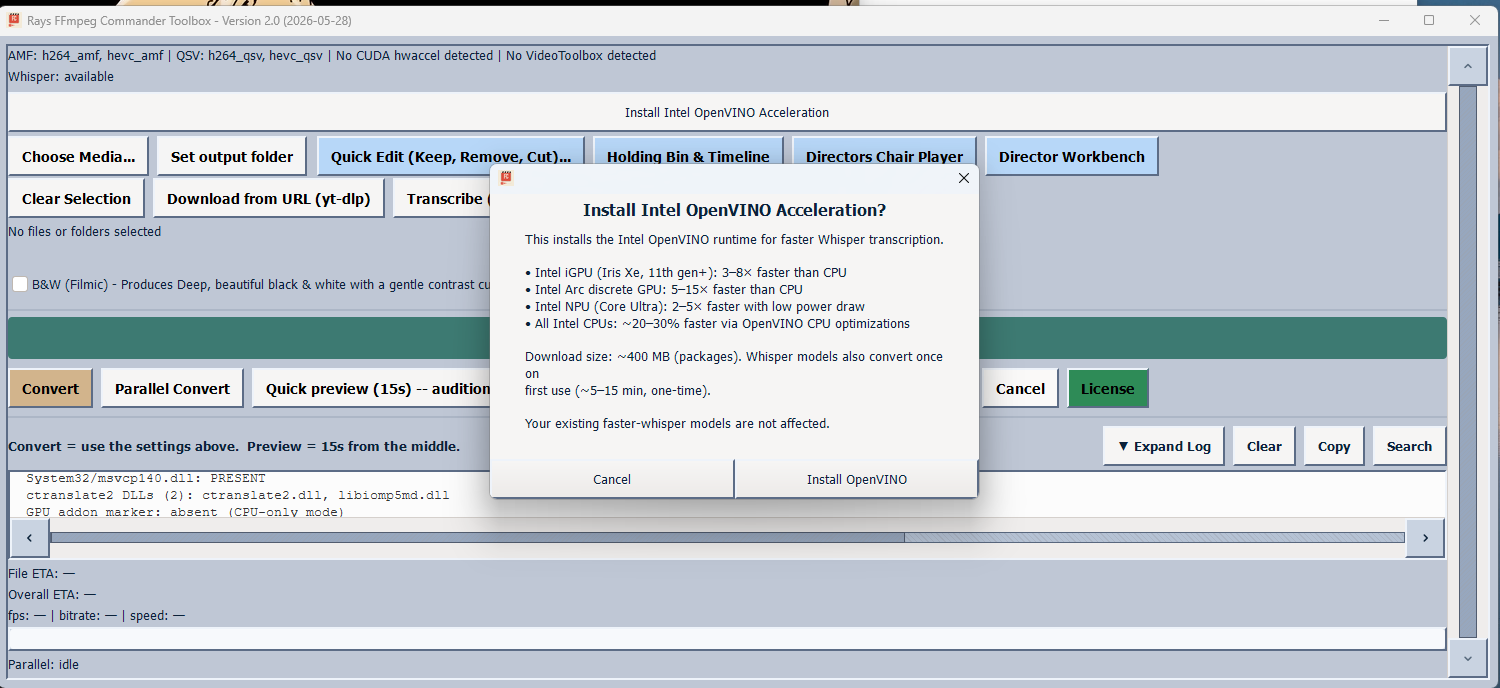
The OpenVINO install dialog shows real-world speed estimates for your hardware — iGPU, Arc discrete GPU, NPU, or CPU-only.
AMD and Intel Hardware Acceleration Now Live on Windows 11
FFmpeg Commander now supports AMD AMF and Intel Quick Sync hardware encoders on Windows 11. Until now, hardware-accelerated encoding on Windows required an NVIDIA GPU. With this update, AMD Radeon users and Intel integrated graphics users can encode video at full hardware speed — no NVIDIA card required.
AMD AMF (h264_amf / hevc_amf) — available on any AMD Radeon GPU, RX 400 series and newer. Delivers hardware-speed H.264 and H.265 encoding comparable to NVIDIA NVENC.
Intel Quick Sync (h264_qsv / hevc_qsv) — built into Intel integrated graphics on most Intel CPUs since 6th generation (Skylake, 2015). This covers a huge number of laptops and desktops that have never had a dedicated GPU. Real-world testing on an Intel HD 530 (2015) showed 164 fps with Quick Sync vs. 56 fps on CPU alone — a 3x speedup on 10-year-old integrated graphics.
Both encoders appear in the video codec dropdown marked [Beta]. FFmpeg Commander detects available hardware at startup and automatically selects the best encoder for your system. If you select AMD or Intel hardware encoding on a machine that doesn't support it, the app falls back to software encoding automatically with a clear log message — no crashes, no errors.
Note: Whisper AI transcription GPU acceleration supports NVIDIA CUDA and Intel OpenVINO. AMD GPUs are not supported for Whisper acceleration at this time.